Migrating from Git
A practical guide for Git users adopting Isurus. This covers conceptual differences, command equivalents, repository conversion, and common gotchas.
You don't have to leave Git. Isurus hosts Git repositories natively — create a Git-type repository and push with
gitexactly as you do today (see Hosting Git & Fossil and the Git Cheat Sheet). Converting to Mercurial is one option, not a requirement. Choose it when you specifically want Mercurial's model (phases, revsets, simpler branching); keep hosting Git as-is when you'd rather not change tooling. The rest of this guide covers the conversion path for teams that do want to move to Mercurial.
Why Mercurial?
Mercurial was designed with three priorities:
- Simplicity — Fewer concepts to learn. No staging area, no reflog, no detached HEAD state. The command set is smaller and more consistent.
- Safety — Pushed history is immutable by default (via phases). You cannot accidentally rewrite shared commits.
- Correctness — Branches are permanent metadata, not movable pointers. The history graph always reflects what actually happened.
Mercurial and Git are both distributed version control systems with similar capabilities. If you are productive with Git, you will be productive with Mercurial within a day.
Conceptual Differences
Branches vs Bookmarks
This is the biggest difference and the most common source of confusion.
Git branches are lightweight, movable pointers to commits. You create them, switch between them, and delete them freely. They leave no trace in history once merged and deleted.
Mercurial has two mechanisms:
- Named branches are permanent metadata embedded in each changeset. Once you commit on a named branch, that branch name is part of the changeset forever. Named branches cannot be deleted. They are best used for long-lived lines of development (e.g.,
stable,default). - Bookmarks are lightweight, movable pointers — exactly like Git branches. Create them, move between them, push them, delete them. Bookmarks are what you use for feature work.
Rule of thumb: If you would use a Git branch, use a Mercurial bookmark.
# Git                          # Mercurial
git branch my-feature          hg bookmark my-feature
git checkout my-feature        hg update my-feature
git branch -d my-feature       hg bookmark -d my-feature
No Staging Area
Git has a two-step process: stage changes with git add, then commit the staged changes. This lets you craft commits from a subset of your modifications.
Mercurial has no staging area. When you run hg commit, it commits all modified tracked files. To commit a subset, list the files explicitly:
# Git: stage specific files, then commit
git add file1.go file2.go
git commit -m "Fix validation"

# Mercurial: commit specific files directly
hg commit -m "Fix validation" file1.go file2.go
This is simpler in practice. You never have to worry about what is staged vs. unstaged.
Phases
Git relies on the reflog and force-push restrictions to protect shared history. Mercurial uses phases — a built-in mechanism that tracks whether changesets are local or shared.
| Phase | Meaning | Mutable? |
|---|---|---|
| draft | Local, not yet pushed | Yes — can amend, rebase, strip |
| public | Pushed to a remote | No — immutable, cannot be rewritten |
When you push changesets, they transition from draft to public. This means you cannot accidentally rebase or amend a commit that others have already pulled. No --force needed — the system enforces it.
Isurus repositories use non-publishing mode, so pushed changesets remain draft until explicitly made public. This gives you more flexibility for collaborative work-in-progress.
Changesets vs Commits
Same concept, different name. Mercurial uses the term "changeset" (often abbreviated "cset"). Each changeset has:
- A local revision number (integer, specific to your clone — e.g.,
42) - A global hash (40-character hex string — e.g.,
a1b2c3d4e5f6...)
Use the hash when communicating with others. Revision numbers differ between clones.
Revsets
Mercurial has a powerful query language called revsets for selecting changesets. This goes far beyond what git log flags can do:
# Find all ancestors of current revision that mention "fix"
hg log -r "ancestors(.) and keyword('fix')"

# Find changesets by a specific author in the last 7 days
hg log -r "author('chris') and date('-7')"

# Find changesets that modified a specific file
hg log -r "file('src/main.go')"

# Find the merge base of two bookmarks
hg log -r "ancestor(feature-a, feature-b)"

# Find all draft changesets (not yet public)
hg log -r "draft()"
See hg help revsets for the full language reference.
Command Mapping
| Task | Git | Mercurial |
|---|---|---|
| Clone a repository | git clone URL |
hg clone URL |
| Initialize a new repo | git init |
hg init |
| Add files to tracking | git add FILE |
hg add FILE |
| Commit all changes | git add -A && git commit -m "msg" |
hg commit -m "msg" |
| Commit specific files | git add f1 f2 && git commit -m "msg" |
hg commit -m "msg" f1 f2 |
| Push changes | git push |
hg push |
| Pull changes | git pull |
hg pull -u |
| Fetch without merging | git fetch |
hg pull (without -u) |
| Check status | git status |
hg status |
| View diff | git diff |
hg diff |
| View log | git log |
hg log |
| View log (graph) | git log --graph |
hg log -G |
| Create branch/bookmark | git branch NAME |
hg bookmark NAME |
| Switch branch/bookmark | git checkout NAME |
hg update NAME |
| Delete branch/bookmark | git branch -d NAME |
hg bookmark -d NAME |
| Merge | git merge NAME |
hg merge NAME |
| Stash changes | git stash |
hg shelve |
| Unstash changes | git stash pop |
hg unshelve |
| Rebase | git rebase TARGET |
hg rebase -d TARGET |
| Cherry-pick | git cherry-pick REV |
hg graft -r REV |
| Tag a revision | git tag NAME |
hg tag NAME |
| Annotate/blame | git blame FILE |
hg annotate FILE |
| Discard uncommitted changes | git checkout -- FILE |
hg revert FILE |
| Discard all uncommitted changes | git checkout . |
hg revert --all |
| Undo a commit (new reverse commit) | git revert REV |
hg backout -r REV |
| Amend last commit | git commit --amend |
hg commit --amend |
| Show a specific commit | git show REV |
hg log -p -r REV |
Note:
hg rebaseandhg shelverequire extensions. Add them to your~/.hgrc:[extensions] rebase = shelve =
Converting a Git Repository
There are three ways to bring a git repository into Isurus, in order of recommendation:
- Web import wizard (recommended). No local tooling required. Isurus clones, converts, and applies the result server-side into an empty target. Works for cross-VCS pairs among Git, Mercurial, and Fossil (not same-to-same — use normal clone/push for that).
- Convert locally with official tools (
hg convert,hg-fast-export,fossil import/export --git), then push. Useful when the source isn't reachable from the Isurus server. hg-gitextension. Useful when you want to keep the source as git and round-trip changes (Mercurial targets only).
Already on Isurus? To change an existing repository's VCS in place (same issues and settings, no new empty repo), use Converting a Repository's VCS instead of Import. Import always targets an empty repository; Convert rewrites the on-disk store of a lived-in one.
Method 1: Web import wizard (recommended)
Create an empty Isurus repository of the target VCS (hg, git, or fossil). The wizard converts a remote of a different VCS into that empty repo. For the classic “GitHub → Mercurial on Isurus” path: create an hg repo and import a Git source. Other edges (hg→git, git↔fossil, fossil↔hg) use the same wizard with source VCS auto-detect or override.
Quick start
-
Create a new (empty) repository in Isurus from your organization page (choose the target VCS).
-
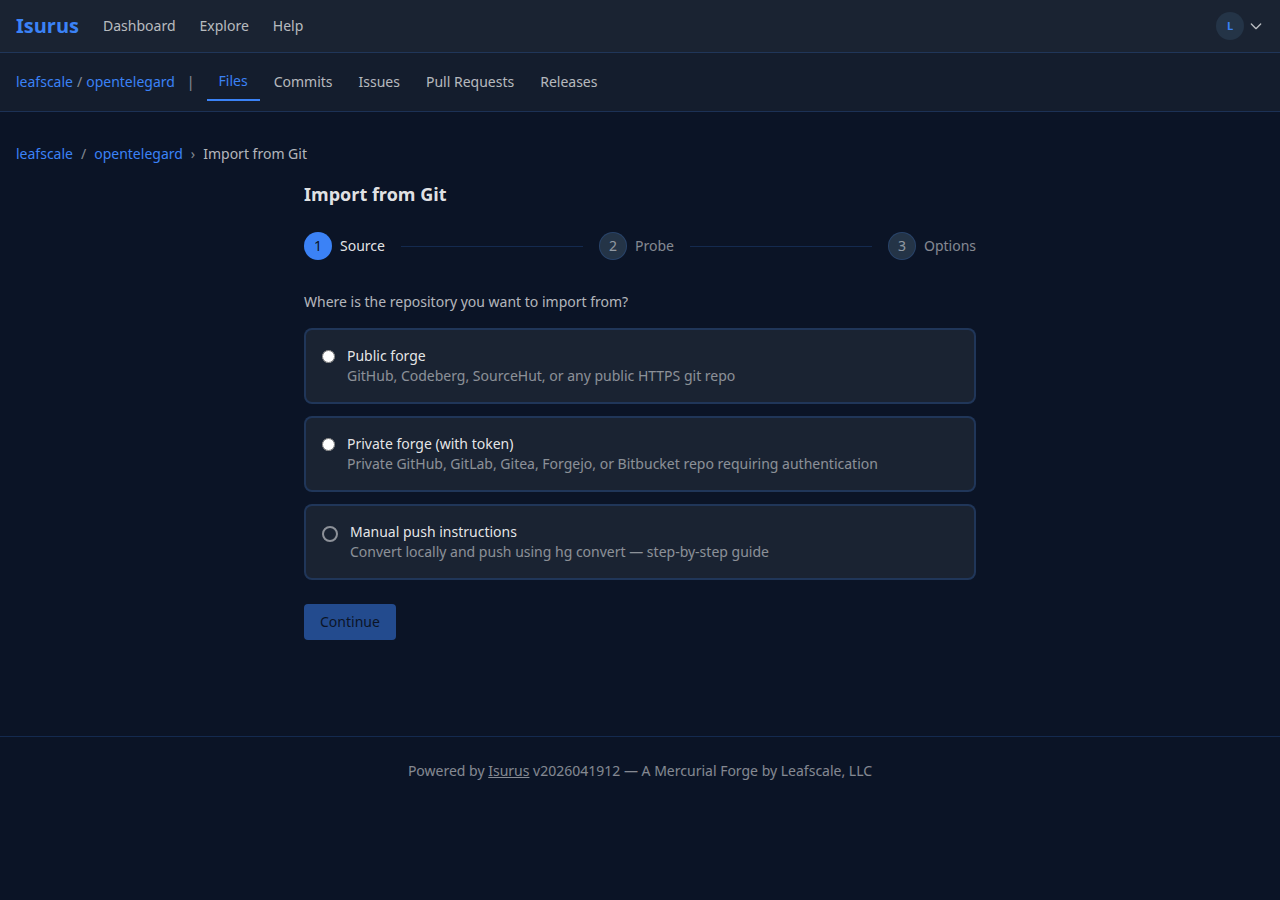
On the empty repository's landing page, open the Import tab and start the wizard.
-
Choose Public forge or Private forge, paste the source URL, set Source VCS (or leave auto-detect), and (for private repos) the access token.
-
Click Probe Source. Isurus contacts the source (SSRF-safe): git smart-HTTP, Mercurial wire
capabilities, or Fossil HTTP. Same source and target VCS is rejected. -
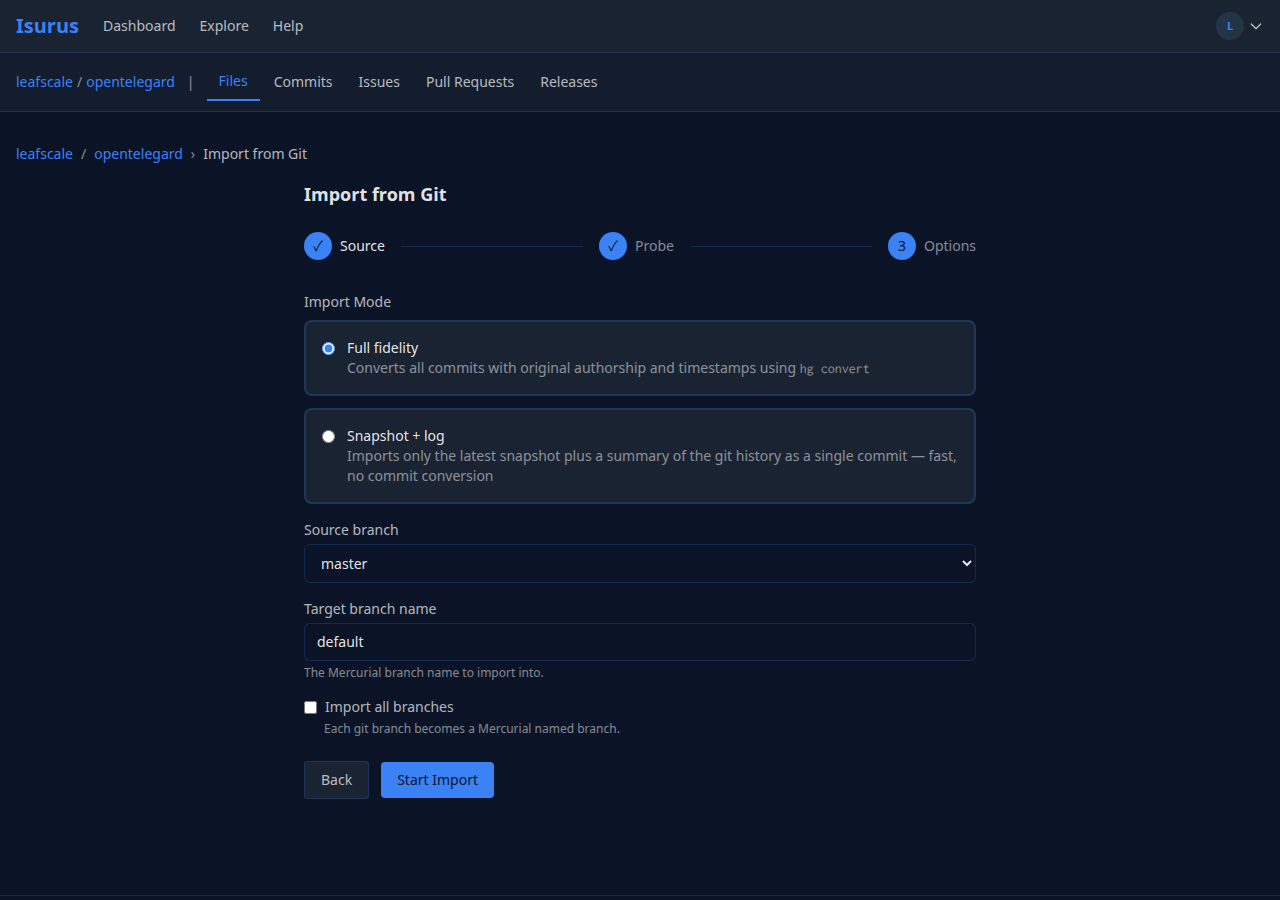
Pick the import mode and the source/target branch, then Start Import.
-
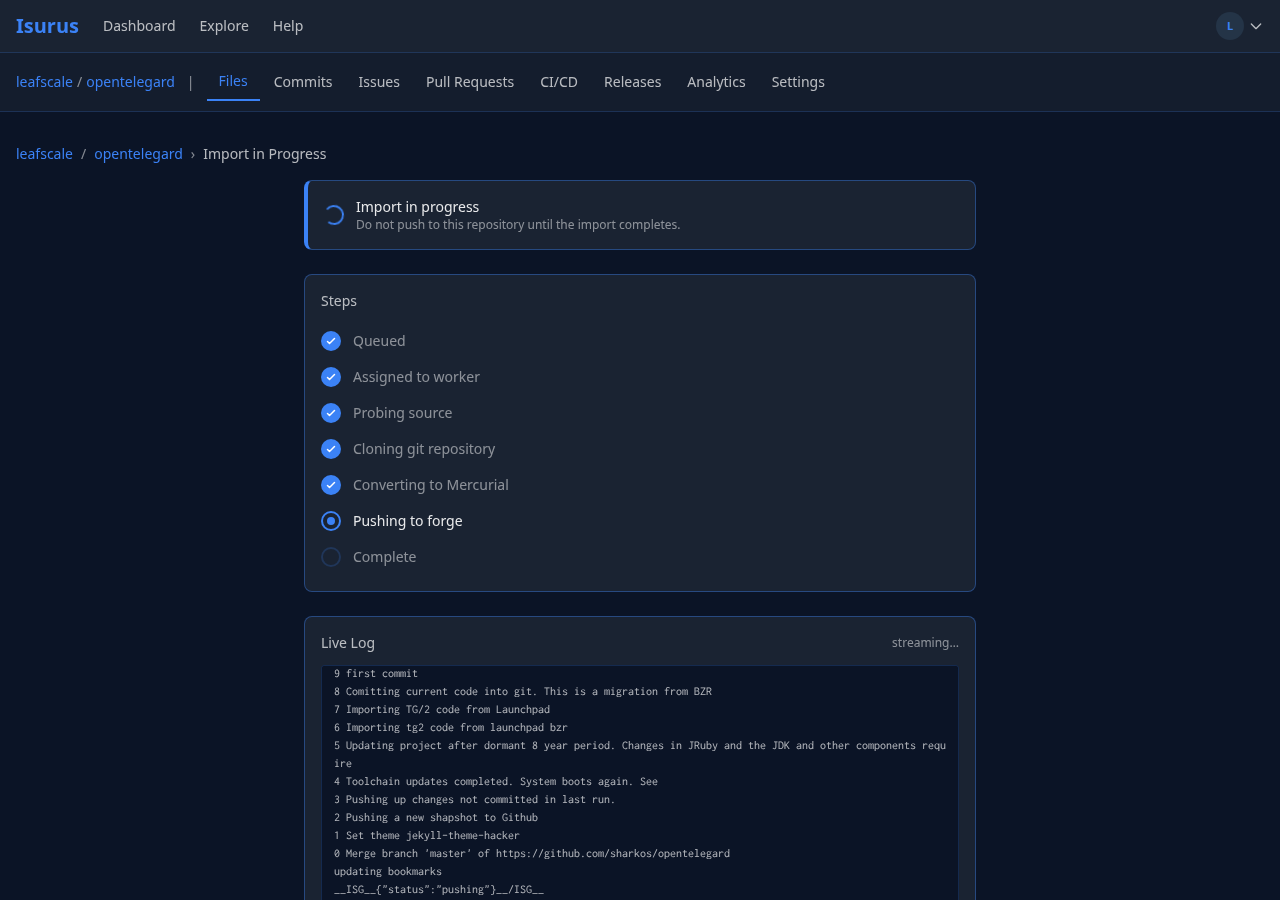
The progress page tracks each phase live (probe → clone → convert → apply). When it finishes you're redirected to the populated repo.
Import modes
Preserve full history (default) — uses official conversion tools for the edge (e.g. hg convert for git→hg, frej/hg-fast-export for hg→git, fossil import/export --git for Fossil pairs). Best for living codebases where blame and history matter.
Snapshot + history log — imports only the latest tree as one commit, plus a text history log for reference. Best for “draw a line and start fresh”, very large repos, or when full conversion is unnecessary.
Private repositories
For private repos, generate a Personal Access Token (PAT) with read access:
| Host | Where to create | Scope |
|---|---|---|
| GitHub | Settings → Developer settings → Personal access tokens (classic) | repo |
| GitLab | Edit profile → Access Tokens | read_repository |
| Gitea / Forgejo | Settings → Applications → Generate new token | Read repository |
| Bitbucket | Personal settings → App passwords | Repositories: Read |
Your PAT is encrypted at rest using AES-256-GCM with a key the import worker never sees. The instant the worker claims the job the encrypted blob is zeroed in the database. The token is never written to logs and never persists after the import completes (or fails).
Live progress and logs
The import-in-progress page:
- Shows a step checklist that updates live (
probing,cloning,converting,pushing,completed). - Streams the worker's full stdout/stderr into a scrolling log panel — git output, hg convert output, and structured ISG markers all appear as they happen.
- Auto-redirects to the populated repository on success.
- Falls back to the Failed view on error, with an Abort and a Retry button.
PATs and other credentials are scrubbed from log lines before they reach you.
Limitations
- Git LFS source repos. The probe detects
.gitattributescontainingfilter=lfsand rejects the import — the importer doesn't transfer LFS blobs from git yet. Once your repo is in Isurus you can opt into Mercurial LFS. - Submodules. Repos containing
.gitmodulesare rejected; either vendor the code or import each submodule as its own repo. - Size. Bounded by
import.max_clone_size_mb(default 2 GB). Probe rejects oversized repos before any work starts. - Duration. Bounded by
import.max_duration_minutes(default 30 min). The worker is killed and the import is marked failed if exceeded. - One active import per repo. Enforced by a partial unique index. Aborting or completing an import frees the slot.
- Three retries. After three failures, the Retry button is disabled and you must abort and start over (or contact your admin).
Troubleshooting
| Error code | What it means | Fix |
|---|---|---|
probe_unreachable |
Couldn't reach the source URL | Verify the URL, server reachability |
probe_auth_failed |
Source returned 401/403 | Re-check the PAT scope and expiry |
probe_not_found |
Source returned 404 | Verify the repo path is correct |
probe_ssrf_blocked |
URL resolved to a private network address | Use a public address; private targets are blocked by policy |
cap_exceeded_size |
Source repo is larger than the configured cap | Ask your admin to raise import.max_clone_size_mb |
lfs_detected |
Source uses Git LFS | Not supported yet; remove LFS from source or migrate without history |
submodules_detected |
Source has .gitmodules |
Vendor the code or import each submodule separately |
cap_exceeded_duration |
Worker hit the time limit | Use snapshot mode or ask your admin to raise import.max_duration_minutes |
convert_failed |
Conversion tool failed | See the full log for the underlying error |
push_failed / artifact_apply_failed |
Artifact upload or on-disk apply failed | Usually transient; retry. If it persists, check disk space |
same_vcs |
Source and target VCS are the same | Use normal clone/push; wizard is cross-VCS only |
agent_lost |
Worker stopped responding | Wait for the worker to come back, then retry |
no_importer_available |
No machine has the Import capability enabled | Ask your admin to enable it on a CI machine with Incus installed |
image_unavailable |
Worker couldn't load its container image | Usually transient on first import; retry |
internal_error |
Unexpected error | See the full log; report to your administrator |
For administrators
The wizard requires at least one CI machine with the Git Import capability enabled. Toggle it per-machine in Admin → Machines → <machine> → Git Import; the toggle requires Incus to already be detected on that machine. The deployer can pre-enable it when registering an agent:
isurus admin register-ci-agent \
--name import-local \
--capabilities incus,shell \
--enable-import \
--concurrency 1
Full deployer setup is in docs/DEPLOYER_CI_REQUIREMENTS.md.
Method 2: hg convert (built-in)
If the source isn't reachable from the Isurus server (private VPN, air-gapped network, etc.), do the conversion locally and push.
Enable the extension
Add to your ~/.hgrc:
[extensions]
convert =
Convert and push
# 1. Clone the Git repo locally
git clone https://github.com/user/repo.git /tmp/repo-git
# 2. Run the conversion
hg convert /tmp/repo-git /tmp/repo-hg
# 3. Enter the converted repo and verify
cd /tmp/repo-hg
hg log -l 5
hg bookmarks
# 4. Set the Isurus remote as default push target
echo "[paths]
default = ssh://your-isurus-instance/org/repo" >> .hg/hgrc
# 5. Push to Isurus
hg push
# 6. Clean up
rm -rf /tmp/repo-git
hg convert preserves full commit history, author information, tags (as Mercurial tags), and branches (as bookmarks).
Method 3: hg-git extension
The hg-git extension lets Mercurial interoperate with Git repositories directly — useful if you want to keep pulling future updates from a git source, or push back to git.
Install
pip install hg-git
Add to your ~/.hgrc:
[extensions]
hggit =
Clone a Git repo as Mercurial
# Clone from a Git URL (prefix with git+)
hg clone git+https://github.com/user/repo.git repo-hg
# Or clone from a local Git repo
hg clone git+file:///path/to/git-repo repo-hg
This creates a full Mercurial repository with all history converted. Git branches become Mercurial bookmarks.
Push to Isurus
cd repo-hg
# Set the Isurus remote
hg paths -a default ssh://your-isurus-instance/org/repo
# Push all bookmarks
hg push
Workflow Translation
Feature Branch Workflow
The most common Git workflow translates directly to Mercurial bookmarks:
# Git workflow # Mercurial workflow
git checkout -b my-feature hg bookmark my-feature
# ... make changes ... # ... make changes ...
git add -A # (not needed)
git commit -m "Add feature" hg commit -m "Add feature"
git push -u origin my-feature hg push -B my-feature
# Open PR on GitHub # Open PR on Isurus
Pull Requests
Pull requests in Isurus work the same way conceptually. They are bookmark-based:
- Create and activate a bookmark for your feature (so commits move the bookmark, not mainline).
- Make commits on that bookmark.
- Push the bookmark to Isurus.
- Create a Pull Request from your bookmark — it merges into mainline, the
@bookmark. - After review, merge the PR through the web UI.
The mapping from Git: Git merges feature-branch into main; Isurus merges a feature bookmark into the @ mainline bookmark. @ is Mercurial's mainline convention (the equivalent of Git's main) and is what hg clone/hg update land on.
Code Review
Isurus pull requests support:
- Markdown comments with code highlighting
- Line-by-line discussion
- Changeset diff view
- Issue auto-close via commit messages (e.g.,
closes #42)
Common Gotchas
No git add -p (Partial Staging)
Git's git add -p lets you stage individual hunks within a file. Mercurial has no staging area, so this does not exist.
Workaround: Commit specific files with hg commit file1 file2. If you need hunk-level granularity, use the record extension:
[extensions]
record =
hg record # Interactive hunk selection
hg push Pushes All Bookmarks
Unlike git push which pushes only the current branch by default, hg push pushes all new changesets and active bookmarks.
To push only a specific bookmark:
hg push -B my-feature
Named Branches Are Permanent
If you accidentally create a named branch (hg branch bad-name followed by a commit), that branch name is embedded in the changeset permanently. It cannot be removed.
Avoid this: Always use bookmarks for feature work. Named branches are only for long-lived lines like default or stable.
.hgignore Uses Regexp by Default
Git's .gitignore uses glob patterns. Mercurial's .hgignore uses regular expressions by default.
To use glob patterns (like .gitignore), add this at the top of your .hgignore:
syntax: glob
*.pyc
__pycache__/
node_modules/
.env
You can also mix syntaxes:
syntax: glob
*.pyc
node_modules/
syntax: regexp
^build/output-\d+
No git stash by Default
Mercurial does not have a built-in stash command. Enable the shelve extension:
[extensions]
shelve =
Then use it like git stash:
hg shelve # Save uncommitted changes
hg unshelve # Restore saved changes
hg shelve --list # List shelved changes
hg shelve --delete NAME # Delete a specific shelf
History Rewriting Is Phase-Aware
In Git, you can rebase or amend any commit and force-push. In Mercurial, you can only rewrite draft changesets. Once a changeset becomes public (pushed), it is immutable.
# This works (draft changeset)
hg commit --amend
# This fails if the changeset is public
hg rebase -d tip # abort: can't rebase public changeset
This is a feature, not a limitation. It prevents you from rewriting history that others depend on.
default Instead of main
Mercurial's default branch is called default, not main or master. When you create a repository on Isurus, the initial branch is default.
Recommended .hgrc for Git Users
If you are coming from Git, this ~/.hgrc configuration will make Mercurial feel familiar:
[ui]
username = Your Name <your@email.com>
merge = internal:merge3
[extensions]
rebase =
shelve =
strip =
[alias]
st = status
ci = commit
co = update
lg = log -G --template "{rev}:{short(node)} {bookmarks} {desc|firstline} ({date|age})\n"
where = log -r . --template "{rev}:{short(node)} [{branch}] {bookmarks}\n"
[diff]
git = true
The [diff] git = true setting makes hg diff output Git-compatible diff format, which may feel more familiar and works better with some editors and tools.
Mapping Woodpecker event: Filters to Isurus
| Woodpecker filter | Isurus equivalent |
|---|---|
event: push |
when: { event: [push] } — same semantics; also matches pushes that update an open PR |
event: pull_request |
when: { event: [pull_request] } |
event: [push, pull_request] |
when: { event: [push, pull_request] } (default for unfiltered pipelines) |
event: tag |
when: { event: [tag] } |
event: cron |
Not supported — use Isurus scheduled releases or external triggers |
Registry-auth migration
Replace Woodpecker's image_pull_secrets: or per-step registry: blocks with a single top-level container-registry: array. The credentials secret value must be a JSON object: {"username":"<user>","password":"<token>"}.
What's Next?
- Getting Started — Account setup, SSH keys, and first clone.
- Converting a Repository's VCS — In-place convert for a repo already on Isurus.
- Hosting Git & Fossil — Native Git and Fossil hosting.
- Mercurial Cheat Sheet — Quick command reference.
- Pull Requests — Create and review PRs using bookmark workflows.
- CI/CD Guide — Automate builds and tests.