Pull Requests
Pull requests let you propose changes from one line of development into your repository's mainline and request code review before merging. They provide a structured workflow for discussing changes, iterating on feedback, and maintaining a clean project history.
Pull requests work across all three of Isurus's version-control backends. What differs is only the native reference you push:
| VCS | You push… | PR merges into… |
|---|---|---|
| Git | a branch | the repository's default branch (e.g. main) |
| Mercurial | a bookmark (or named branch) | the @ mainline bookmark |
| Fossil | a branch | the repository's mainline branch (e.g. trunk) |
Everything downstream of the push — opening the PR, reviewing the diff, leaving inline comments, linking issues, and merging — is the same regardless of VCS. The sections below use Mercurial's bookmark workflow as the worked example; Git and Fossil users follow the identical steps with git branches or fossil branches. See the Git Cheat Sheet and Fossil Cheat Sheet for their exact push commands.
Bookmark Workflow (Mercurial)
Isurus uses Mercurial bookmarks as the basis for pull requests. Bookmarks are lightweight, movable references — similar to Git branches — that track the tip of a line of development.
Mainline is the @ bookmark
Isurus marks each repository's mainline with the standard Mercurial @ bookmark. hg clone and hg update land on @ automatically, and pull requests always merge a source bookmark into @ (you don't choose a target — @ is mainline).
The one workflow rule to follow: create and activate a feature bookmark before you commit; leave @ for mainline. Mercurial only moves the active bookmark when you commit, so a feature bookmark advances while @ stays put — exactly like git checkout -b feature. If you commit while @ is active, your work lands on mainline instead of in a reviewable bookmark.
1. Create a Bookmark
Pull the latest mainline (you land on @), then create and activate a feature bookmark — this deactivates @ so your commits don't move it:
hg pull -u            # updates to @ (mainline)
hg bookmark my-feature # create + activate (like `git checkout -b`)
2. Make Commits
Work normally and commit. Only the active feature bookmark advances; @ stays at mainline:
# Edit files...
hg commit -m "Add input validation to signup form"

# Continue working...
hg commit -m "Add unit tests for validation"

hg bookmarks          # '@' unchanged; 'my-feature' advanced
3. Push the Bookmark
Push the bookmark to Isurus. The -B flag publishes the bookmark itself, not just the changesets:
hg push -B my-feature
4. Create a Pull Request on Isurus
Once the bookmark is pushed, open a pull request through the web UI (see below). The target is always @.
Full Example
# Clone — lands on @ (mainline) automatically
hg clone ssh://isurus-host/myorg/myrepo
cd myrepo

# Create + activate a feature bookmark BEFORE committing
hg bookmark add-search-api

# Work and commit — moves add-search-api, not @
hg commit -m "Add search endpoint to API"
hg commit -m "Add search tests and documentation"

# Push the bookmark
hg push -B add-search-api

# Now open a pull request on the Isurus web UI (merges into @)
Creating a Pull Request
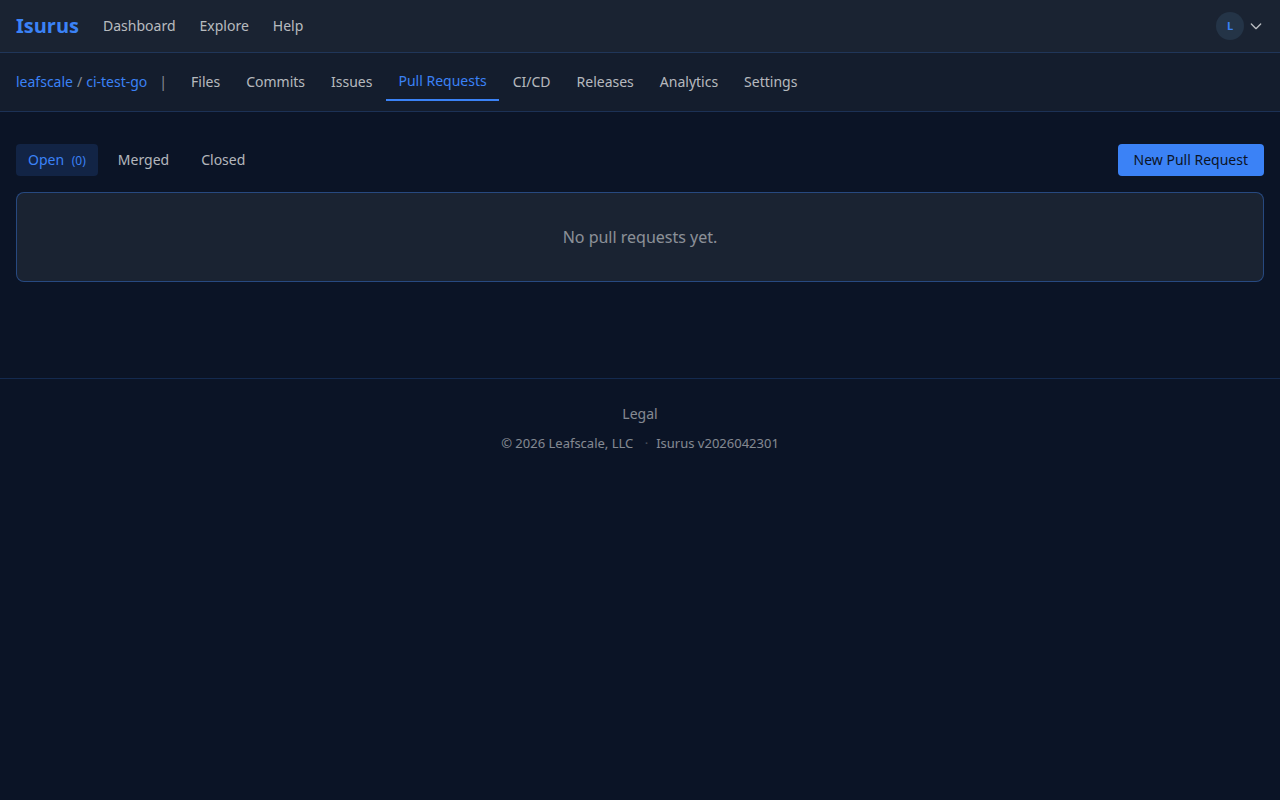
- Navigate to your repository.
- Click the Pull Requests tab.
- Click New Pull Request.
- Fill in the form:
- Source bookmark — Select the bookmark containing your changes (e.g.,
add-search-api). - Target — Always the
@mainline bookmark; there's nothing to choose. - Title — A short summary of the changes.
- Description — Detailed explanation of what changed and why. Supports Markdown formatting.
- Source bookmark — Select the bookmark containing your changes (e.g.,
- Click Create Pull Request.
Note: You must be an organization member to create pull requests. Only one open pull request can exist per source bookmark at a time.
Issue References
You can link pull requests to issues by referencing issue numbers in the PR description or comments using #N syntax.
Linking to Issues
Type #N anywhere in the description or a comment to create a clickable link to issue N:
This PR adds the search feature described in #12.
See also #15 for the related UI work.
Auto-Closing Issues on Merge
Use a close keyword followed by #N to automatically close the referenced issue when the pull request is merged (not when the PR is created):
| Keyword | Example |
|---|---|
close, closes, closed |
closes #8 |
fix, fixes, fixed |
fixes #42 |
resolve, resolves, resolved |
resolves #15 |
Keywords are case-insensitive. You can reference multiple issues:
This PR fixes #8 and resolves #15.
When the PR is merged, issues #8 and #15 will be automatically closed, and their timelines will show "closed via PR #Y".
Reference Without Closing
Use ref, refs, reference, or references followed by #N to link to an issue without closing it:
Refs #30 — related refactoring, does not fully resolve.
Important: Auto-close only happens on merge. Closing or reopening a PR without merging does not affect referenced issues.
Code Review
Viewing the Diff
When you open a pull request, Isurus displays:
- The list of changesets (commits) included in the PR.
- A unified diff showing all changes between the source bookmark and mainline (
@).
Leaving Comments
Organization members can leave comments on the pull request to provide feedback, ask questions, or approve the changes. Comments support Markdown formatting and issue cross-references (#N).
Updating a Pull Request
To address review feedback, simply push additional commits to the same bookmark:
# Make changes based on review feedback
hg commit -m "Address review: improve error handling"

# Push the updated bookmark
hg push -B my-feature
The pull request updates automatically — the diff and changeset list reflect the latest state of the bookmark. There is no need to close and reopen the PR.
Merging
When the changes are approved and ready:
- Open the pull request.
- Click the Merge button.
Merging is available to the repository owner or the PR author. When the merge completes:
- The source bookmark is integrated into mainline (
@). If mainline hasn't diverged, this is a fast-forward (no merge commit); otherwise a merge commit is created. The@bookmark then advances to the result. - Issues referenced with close keywords (
closes,fixes,resolvesand their variants) are automatically closed. - Closed issues show "closed via PR #Y" on their timeline.
- The pull request status changes to Merged.
Closing and Reopening
Closing Without Merging
If a pull request is no longer needed, any organization member can close it without merging:
- Open the pull request.
- Click the Close button.
Closing a PR does not merge any changes and does not affect referenced issues.
Reopening a Closed Pull Request
A closed (not merged) pull request can be reopened:
- Open the closed pull request.
- Click the Reopen button.
Note: Merged pull requests cannot be reopened.
Filtering and Pagination
The pull request list supports filtering and pagination:
| Control | Options |
|---|---|
| Status filter | Open, Merged, Closed |
| Page size | 20, 50, or 100 per page |
| Navigation | Previous / Next page links |
The list header shows the count of open pull requests. Select a status tab to switch between open, merged, and closed pull requests.