Using LFS
Mercurial Large File Storage (LFS) keeps binary files — assets, datasets, build outputs — outside repository history while letting you commit and push them as if they were ordinary files. Isurus implements the standard LFS Batch protocol server-side and works with the lfs extension bundled with hg 4.5 and later. There is no per-repo LFS store and no extra configuration on the client beyond enabling the extension.
Mercurial only. LFS in Isurus is a Mercurial feature. Git repositories (including
git-lfs) and Fossil repositories are not served by the LFS endpoints, and the.hglfssetup below does not apply to them. Store large binaries in git/fossil repos using their native mechanisms, or host such projects as Mercurial repositories if you need Isurus-managed LFS.
Prerequisites
-
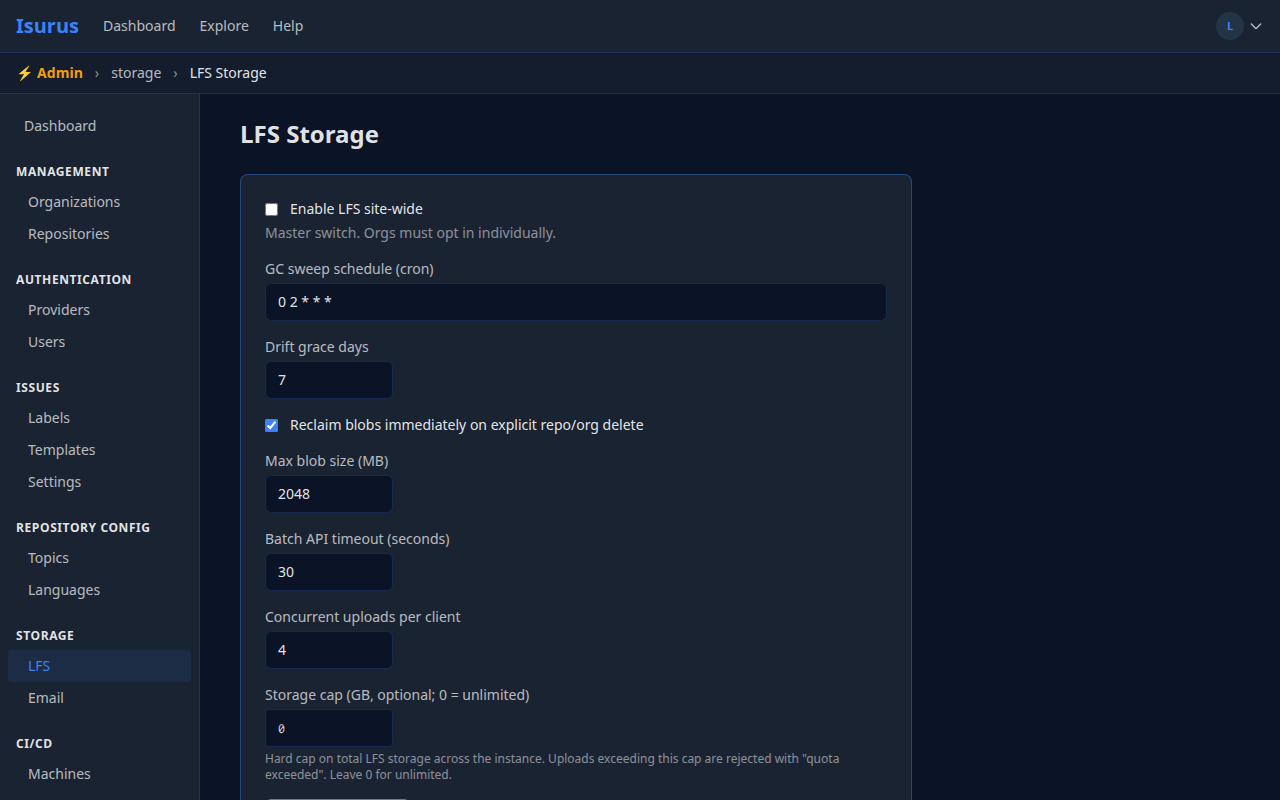
Your site administrator has enabled LFS globally in Admin → LFS.
-
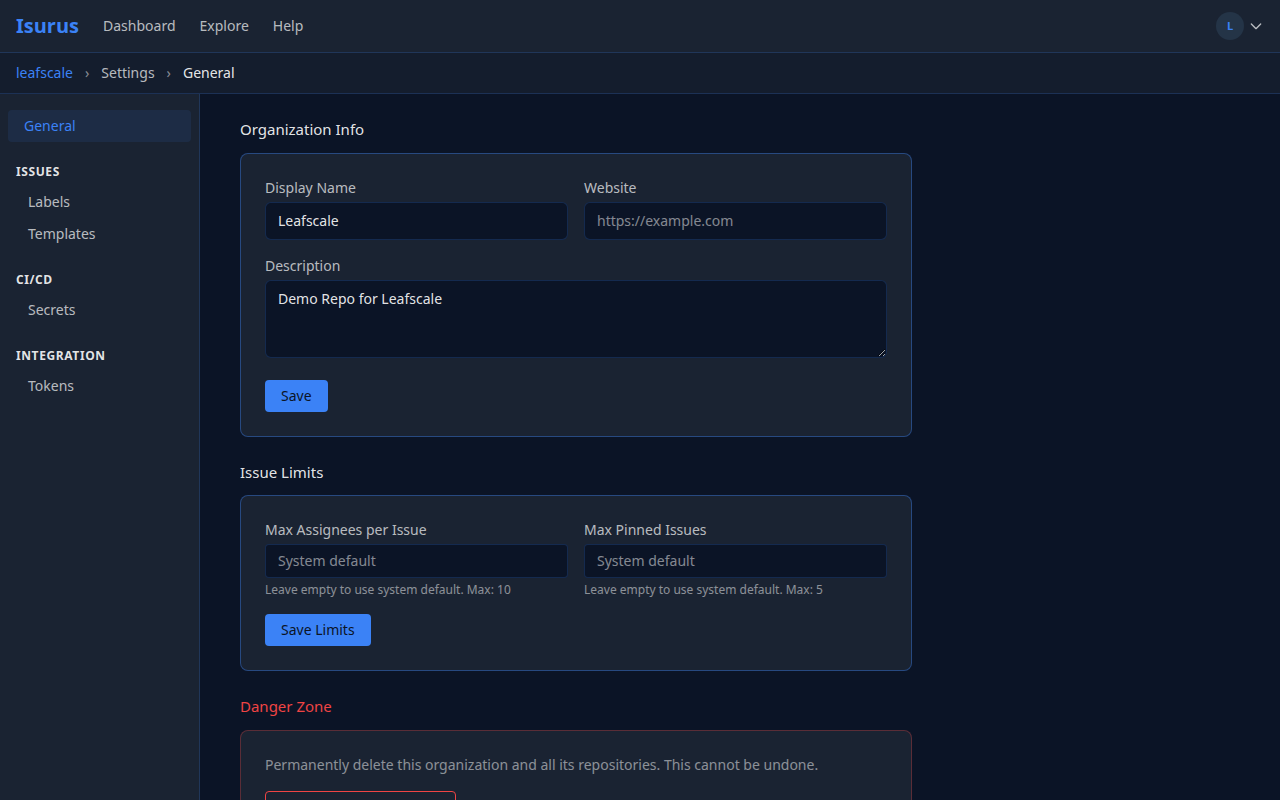
Your organization owner has enabled LFS for the org in Organization Settings → Large File Storage (LFS) (the panel only appears once site-wide LFS is on).
-
Mercurial 4.5 or later is installed locally (
hg version).
One-time client setup
Add the extension to your ~/.hgrc (or %USERPROFILE%\mercurial.ini on Windows):
[extensions]
lfs =
That's all. Isurus advertises LFS capability on every clone, so the extension wires itself up automatically.
Tracking files
Create a file called .hglfs at the root of your repository. Mercurial consults this file at commit time to decide which files become LFS pointers:
[track]
**.psd = size(">512KB")
**.png = size(">1MB")
**.zip = all()
assets/*.fbx = all()
Each line is pattern = predicate. The most common predicates:
size(">N")— files larger than N (1KB,1MB,1GBsuffixes accepted).all()— every file matching the pattern, regardless of size.
See hg help lfs for the full predicate reference.
Commit .hglfs like any other file:
hg add .hglfs
hg commit -m "Enable LFS tracking for binaries"
From this commit forward, matching files appear in repository history as small pointer files; the actual content lives in Isurus's blob store.
Pushing and pulling
hg push and hg pull work transparently. The lfs extension uploads and downloads blobs alongside the regular changegroup exchange — no extra commands.
hg push       # Push commits, then upload any needed blobs
hg pull -u    # Pull commits, download blobs, update working copy
What you'll see in the web UI
LFS-tracked files always render as a download banner in the file browser — they are never inline-rendered, regardless of size or type. Click Download file to stream the blob.
A small lfs badge appears next to the repository name once the repo has at least one LFS blob. An LFS tab in the repo navigation lists all blobs with their SHA256, size, and first-claimed date.
Storage quota
LFS storage is bounded by a site-wide cap your administrator sets in Admin → LFS (lfs.storage_cap_gb). When the cap is reached, new uploads return 507 Insufficient Storage until space is freed (delete repos, hg strip history, or ask the admin to raise the cap).
If your administrator has not set a cap, LFS storage is unlimited.
The organization settings page shows a usage bar for the org's repository + LFS bytes; this is informational and counts against the global cap.
Common errors
| Error | What it means |
|---|---|
503 LFS is disabled on this server |
The site administrator has not enabled LFS globally. |
404 LFS is not enabled for this organization |
The organization owner needs to opt in from Organization Settings → Large File Storage. |
507 Storage quota exceeded |
The site is at its lfs.storage_cap_gb cap. |
422 SHA256 mismatch |
The local file changed mid-upload. Re-run hg push. |
413 Object exceeds max blob size |
The file is larger than the admin-configured lfs.max_blob_size_mb per-blob cap. |
Garbage collection
When a commit referencing an LFS blob is stripped (e.g., hg strip or a force-push rewrite), the claim is flagged for reclamation after a grace period (lfs.gc_grace_days, default 7 days). This gives teammates a window to restore stripped history before the blob becomes unrecoverable.
When a repository is deleted, LFS blobs claimed only by that repository are reclaimed immediately by default (lfs.on_delete_immediate=true) — deletion is treated as informed intent. The administrator can flip this behaviour to use the grace period instead.
A scheduled job (lfs.gc_schedule, default 0 2 * * * — daily at 02:00) walks the claim table and frees orphaned blob storage.
LFS in CI/CD pipelines
Known limitation: CI pipelines on private repositories clone the repo automatically (via a short-lived read-grant), but the CI agent cannot yet download LFS objects for private repos — the LFS endpoints require API-token authentication that the CI read-grant does not provide. Steps that read an LFS-tracked file will see the pointer file instead of its content.
Public-repo pipelines are unaffected (LFS reads on public repos are open). See CI/CD → Known Limitations for details. Native support is a tracked follow-up.
CLI access with SSO
If your organization authenticates via SAML or OIDC, see CLI access with SSO for how to authenticate hg push, hg pull, and LFS uploads against Isurus.